강의 구입 완료
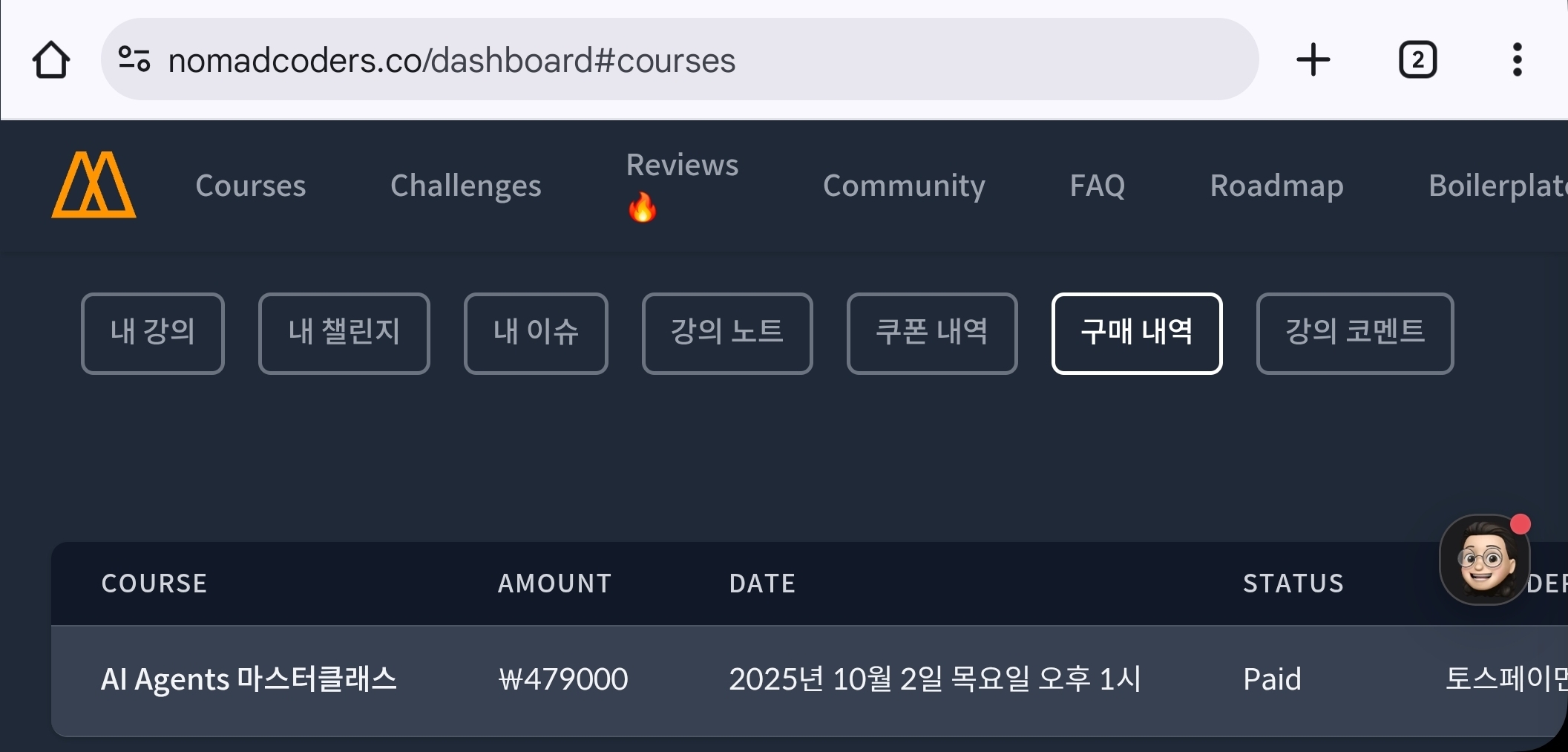
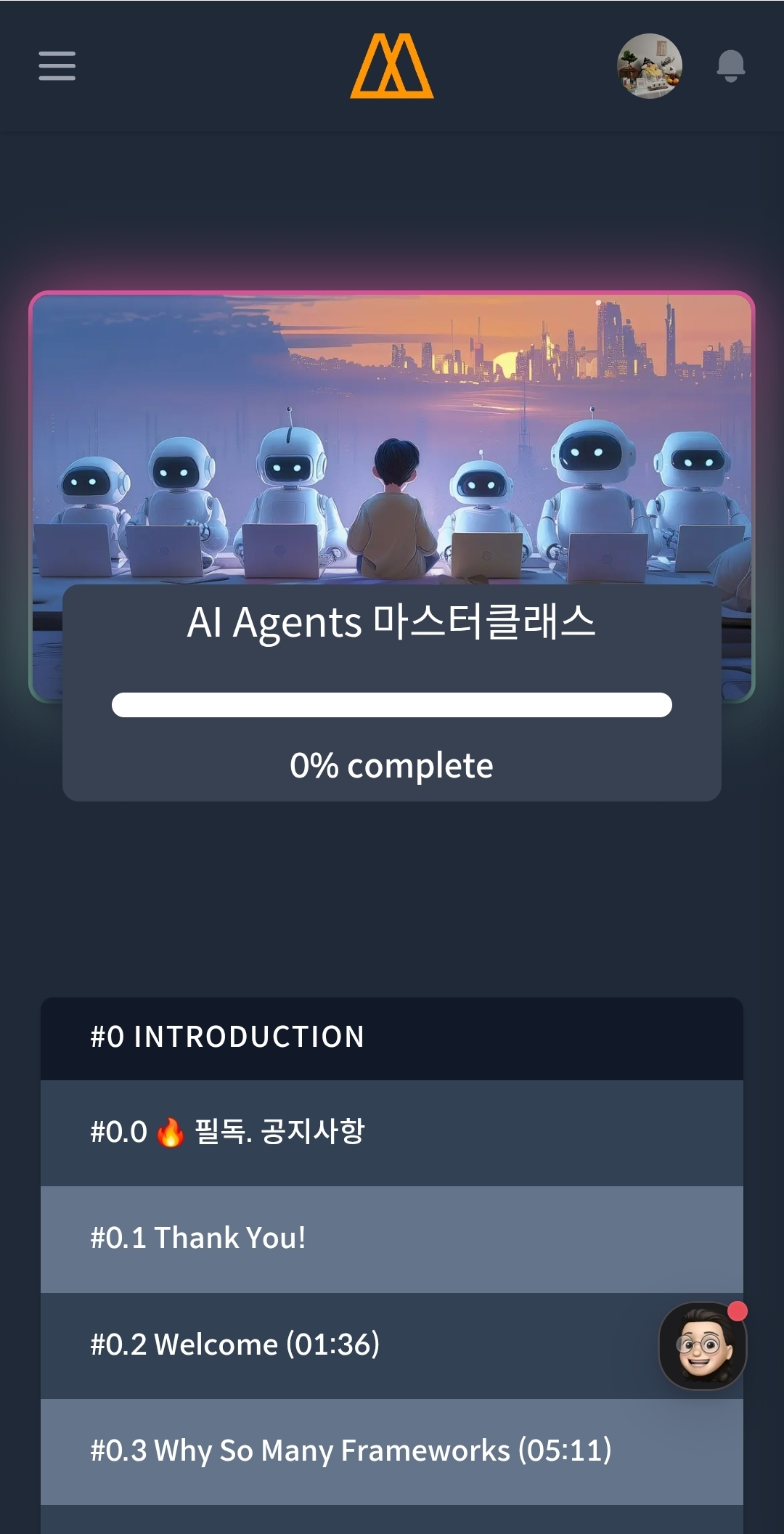
꼭 배우고 싶었는데 육아로 시간이 안나서
뛰어난 강의력을 믿고.. 빠르게 학습하고 싶어서 수강했어요
이 포스팅을 아내가 발견하지 않기를 바라며
제발 걸리지 않기를..
#노마드코더 #AI강의 #AI에이전트
강의 구입 완료
꼭 배우고 싶었는데 육아로 시간이 안나서
뛰어난 강의력을 믿고.. 빠르게 학습하고 싶어서 수강했어요
이 포스팅을 아내가 발견하지 않기를 바라며
제발 걸리지 않기를..
#노마드코더 #AI강의 #AI에이전트
https://stackoverflow.com/questions/55878536/no-package-xkbfile-found-when-build-vscode-on-ubuntu
sudo apt-get install -y g++ gcc make python2.7 pkg-config libx11-dev libxkbfile-dev libsecret-1-dev
| 무료 gcp 사용 및 ssh 키 등록 에러 해결 (0) | 2022.04.05 |
|---|---|
| [백업] .tmux.conf (0) | 2021.01.16 |
| SpaceVim 괄호 후 엔터칠 때 자동 줄바꿈 및 탭 (0) | 2020.06.04 |
| leetcode cli cookie login (0) | 2020.04.19 |
| 환경세팅(Powerlevel10k, zsh-autosuggestions, zsh-syntax-highlighting, autojump) (0) | 2020.02.17 |
무료 서버 받는 법: https://www.youtube.com/watch?v=u7LvG-deMOE
위 영상을 따라하다보면 ssh 키 등록에서 에러가 난다. 아래 참고하여 해결함.
[GCP] Google Cloud ssh-key 이용하여 접속
[GCP] Google Cloud ssh-key 이용하여 접속 Linux 의 경우 ssh-keygen 명령어를 통하여 아래와 같이 RSA 키페어를 생성 하고, Windows는 puttygen 을 이용하여 RSA 키페어를 생성 합니다. Global 모든 Cloud 인스턴스에
blog.crois.net
https://jybaek.gitbook.io/with-gcp/appendix/gce_to_ssh
인스턴스에 SSH로 접속하기 - GCP 탐구생활
본문에서는 Cloud Shell 을 이용해서 인스턴스에 접속하는 방법을 살펴봤는데, 이번에는 사용자의 머신에서 직접 SSH 를 접속하는 방법에 대해서 설명한다. 환경은 리눅스(우분투)지만 다른 OS라도
jybaek.gitbook.io
문제 원인은 내가 우분투에서 ssh-keygen으로 키 생성시 비밀번호 없이 그냥 엔터 쳐서 만들었기 때문.
아래와 같이 접속에 사용할 USERNAME까지 입력해서 생성하자.
$ ssh-keygen -t rsa -f ~/.ssh/[KEY_FILE_NAME] -C [USERNAME]
예:
$ ssh-keygen -t rsa -C "접속할id아무거나"
우분투 데스크탑에서 gcp 무료 인스턴스에 접속해서 nyancat 이라는 프로그램을 설치해본 모습. 잘 된다.

| No package 'xkbfile' found when build vscode on Ubuntu (0) | 2022.05.19 |
|---|---|
| [백업] .tmux.conf (0) | 2021.01.16 |
| SpaceVim 괄호 후 엔터칠 때 자동 줄바꿈 및 탭 (0) | 2020.06.04 |
| leetcode cli cookie login (0) | 2020.04.19 |
| 환경세팅(Powerlevel10k, zsh-autosuggestions, zsh-syntax-highlighting, autojump) (0) | 2020.02.17 |
#!/bin/sh
for f in *.vsix
do
    echo "install $f"
    bsdtar -xvf $f - extension
    NAME="${f%.*}"
    mv extension /root/.local/share/code-server/extensions/$NAME
    echo "$NAME installed!"
done
# remap prefix from 'C-b' to 'C-a'
unbind C-b
set-option -g prefix C-a
bind-key C-a send-prefix
# split panes using | and -
bind-key "\|" split-window -h
bind-key "\\" split-window -h
bind-key "-" split-window -v
unbind '"'
unbind %
# Resize the current pane using Alt + direction
bind -n M-k resize-pane -U 5
bind -n M-j resize-pane -D 5
bind -n M-h resize-pane -L 5
bind -n M-l resize-pane -R 5
# pane switching
bind -n C-k select-pane -U
bind -n C-j select-pane -D
bind -n C-h select-pane -L
bind -n C-l select-pane -R
bind C-a next-window
# Set status bar
set -g status-bg black
set -g status-fg white
set -g status-right '%a %b %d, %H:%M'
# Highlight active window
#set-window-option -g window-status-current-bg blue
set-window-option -g window-status-current-style bg=green
set -g default-terminal "screen-256color"
# Set window notifications
setw -g monitor-activity on
set -g visual-activity on
| No package 'xkbfile' found when build vscode on Ubuntu (0) | 2022.05.19 |
|---|---|
| 무료 gcp 사용 및 ssh 키 등록 에러 해결 (0) | 2022.04.05 |
| SpaceVim 괄호 후 엔터칠 때 자동 줄바꿈 및 탭 (0) | 2020.06.04 |
| leetcode cli cookie login (0) | 2020.04.19 |
| 환경세팅(Powerlevel10k, zsh-autosuggestions, zsh-syntax-highlighting, autojump) (0) | 2020.02.17 |
[[layers]]
name = 'autocomplete'
auto-completion-return-key-behavior = "smart"
참고:
https://github.com/SpaceVim/SpaceVim/issues/1857
| 무료 gcp 사용 및 ssh 키 등록 에러 해결 (0) | 2022.04.05 |
|---|---|
| [백업] .tmux.conf (0) | 2021.01.16 |
| leetcode cli cookie login (0) | 2020.04.19 |
| 환경세팅(Powerlevel10k, zsh-autosuggestions, zsh-syntax-highlighting, autojump) (0) | 2020.02.17 |
| git am, git apply, patch 실패할 때: easy to show conflict marker (0) | 2019.12.22 |
https://github.com/jdneo/vscode-leetcode/issues/478
https://github.com/jdneo/vscode-leetcode/issues/478#issuecomment-564757098
Spent an hour and figured it out. Here are the step by step instructions by people newbie like me.
Make sure Node.js 8+ is installed. Instructions can be found on the official page
Install leetcode-cli from OS terminal or the terminal within vscode. Installation guide. Note the "From Github" section links to an older version.
# to remove the old version
npm uninstall -g leetcode-cli
# to install the up-to-date version(2.6.17+)
npm install -g leetcode-tools/leetcode-cli
Type leetcode version in terminal to make sure you installed version 2.6.17+.
Log into leetcode.com in a browser. In Chrome, right click and select "Inspect". Switch to tab "Network", "XHR". Then click any button on leetcode.com(now should be on the left split screen). Now you should be able to see the cookie as @yihong0618 showed in the pic. Copy the entire cookie string starting from "__cfduid" and ending with "_gat=1"
Type leetcode user -c from terminal within vscode. Follow the prompt and type in your username and cookie you copied above.
따라해보니깐 위 3번에서 쿠키를 쉽게 발견하려면
leetcode 로그아웃 후 로그인하면 찾기 쉽다.
그리고 러스트로 leetcode cli 만드는 프로젝트도 있던데,
https://leetcode.com/discuss/interview-question/480110/wrote-a-leetcode-cli-in-rust-welcome-to-pr
https://github.com/clearloop/leetcode-cli
현재 cargo 빌드는 깨지는 상태이지만 쿠키 로그인에 대한 설명은 참고할 만하다.
|
크롬에서 여기 들어가면 쿠키 정보를 쉽게 볼 수 있다.
| [백업] .tmux.conf (0) | 2021.01.16 |
|---|---|
| SpaceVim 괄호 후 엔터칠 때 자동 줄바꿈 및 탭 (0) | 2020.06.04 |
| 환경세팅(Powerlevel10k, zsh-autosuggestions, zsh-syntax-highlighting, autojump) (0) | 2020.02.17 |
| git am, git apply, patch 실패할 때: easy to show conflict marker (0) | 2019.12.22 |
| tmux 환경 자동저장/불러오기 (0) | 2019.10.01 |
https://github.com/romkatv/powerlevel10k/blob/master/README.md
romkatv/powerlevel10k
A Zsh theme. Contribute to romkatv/powerlevel10k development by creating an account on GitHub.
github.com
https://nachwon.github.io/how-to-install-zsh-plugins/
zsh 플러그인 설치하기
zsh에 플러그인을 설치하여 여러가지 편의기능을 추가해보자.
nachwon.github.io
https://beomi.github.io/2017/07/07/Beautify-ZSH/
멋진 Terminal 만들기 - Beomi's Tech blog
2017-07-07 멋진 Terminal 만들기 이번 가이드는 macOS를 위한 가이드입니다. 맥을 개발용으로 사용하는 경우 터미널을 좀 더 편리하고 다양하게 사용하는 방법 중 기본 Shell인 bash대신 zsh을 사용하는 경우가 많습니다. 그리고 oh-my-zsh을 함께 사용해 더 많은 기능을 편리하게 깔수 있기도 합니다. 물론 oh-my-zsh의 기본 테마인 robbyrussell도 예쁘지만, 약간 아쉬운 점이 남기도 하죠. 좀 더 예쁘고 사용하고싶
beomi.github.io
[Mac & Linux] ZSH를 이용해 나만의 쉘/터미널을 만들어보자.
Mac과 Linux의 터미널/쉘은 일단 너무 안이쁘다. 매일 보는 화면에서 시커먼 검정색 바탕에 하얀 글씨만 볼 필요가 없다는점 하나만으로 충분히 셋팅할 가치가 있다고 생각한다. 기타 소소한 기능들과 가독성은 덤..
memoming.com
| SpaceVim 괄호 후 엔터칠 때 자동 줄바꿈 및 탭 (0) | 2020.06.04 |
|---|---|
| leetcode cli cookie login (0) | 2020.04.19 |
| git am, git apply, patch 실패할 때: easy to show conflict marker (0) | 2019.12.22 |
| tmux 환경 자동저장/불러오기 (0) | 2019.10.01 |
| .tmux.conf 백업 (0) | 2019.09.25 |
References:
https://pinocc.tistory.com/181
https://stackoverflow.com/questions/9704296/can-git-apply-leave-conflict-markers-inline-like-git-rebase
Can git apply leave conflict markers inline like git rebase?
git rebase leaves the conflict markers inline in files; something like: <<<<<<< HEAD Whatever line + context is different from the previous commit ======= Whatever line + cont...
stackoverflow.com
패치를 적용할 때 실패하는 경우 conflict을 쉽게 보여주고 싶다.
체리픽을 하거나 git merge를 하는 경우는 다음과 같은 표시가 나와서 한눈에 보기 쉽다:
<<<<<<< HEAD
original code
=======
new code
>>>>>>> new version, new branch
그런데 git am, git apply, patch 를 할 때는 저런 표시(conflict markers)가 안 나와서 답답하기 그지없다.
위에 참고자료를 보고 정리한 솔루션이다.
일단 git am -3 을 한다.
git am -3 0001-foo.patchgit am 을 일단 먼저 쓰는 이유는, 기존 commit message를 그대로 활용할 수 있고, 잘 안 될 경우 --abort를 써서 쉽게 이전 상태로 원상복귀가 되기 때문이다.
컨플릭이 나서 패치에 실패하면, 그담에는 git apply -3을 한다. (--reject 옵션으로 .rej 파일이 생성되게 할 수도 있는데, 나는 알아보기 힘들더라...)
git am -3 0001-foo.patch
(실패)

git apply -3 0001-foo.patch
(실패)

(컨플릭 잡기...)

git am --continue (포기하고 원상복귀 하려면 --abort)

(반복)
그런데 전혀 parent가 다른 git에서 패치를 가져올 경우, git am이든 git apply든 안된다.
이도저도 안될 땐 patch --merge 쓰면 된다.
patch -p1 --merge < 0001-foo.patch
(-p1 옵션은 패치 파일의 경로 앞에 붙은 prefix를 몇 단계나 제거하고 파일경로로 받아들일지 정하는 것)
-p1 옵션은 다들 알테니 자세한 설명은 생략한다. 알아서 잘 쓰길 바랍니다.
| leetcode cli cookie login (0) | 2020.04.19 |
|---|---|
| 환경세팅(Powerlevel10k, zsh-autosuggestions, zsh-syntax-highlighting, autojump) (0) | 2020.02.17 |
| tmux 환경 자동저장/불러오기 (0) | 2019.10.01 |
| .tmux.conf 백업 (0) | 2019.09.25 |
| spacevim 에서 에러 팝업 안 나오게 하기 (0) | 2019.09.25 |
https://andrewjamesjohnson.com/category/uncategorized/
https://github.com/tmux-plugins/tpm#installation
tmux-plugins/tpm
Tmux Plugin Manager. Contribute to tmux-plugins/tpm development by creating an account on GitHub.
github.com
Uncategorized | Andrew Johnson
I’ve been a big fan of tmux since I started using it in 2014. I use it locally for multiplexing my terminal, and in combination with mosh it’s also fantastic for work on remote servers. My main issue with it is losing my sessions when a box restarts. Lucki
andrewjamesjohnson.com
| 환경세팅(Powerlevel10k, zsh-autosuggestions, zsh-syntax-highlighting, autojump) (0) | 2020.02.17 |
|---|---|
| git am, git apply, patch 실패할 때: easy to show conflict marker (0) | 2019.12.22 |
| .tmux.conf 백업 (0) | 2019.09.25 |
| spacevim 에서 에러 팝업 안 나오게 하기 (0) | 2019.09.25 |
| .zshrc 백업 (0) | 2019.04.08 |